Google Business Profile
Written By seorocket
Last updated 6 months ago
The Google Profile section gives you a complete Google Business Profile management hub built directly into SEO Rocket. From a single dashboard, you can publish posts, respond to reviews, manage your location details, view performance data, and automate key tasks — all without ever switching tabs.
Whether you run a single location or manage dozens of client listings, this feature is built to scale with you.
Connecting Your Google Account
To get started, you'll connect your Google account through a simple one-click sign-in flow.
Go to Google Profile in the left sidebar.
Click Connect Google Account.
Sign in to your Google account and approve access.
Select one or more business locations to connect.
Mark one location as your primary location.
You can add more locations at any time without starting over, and you can disconnect your account whenever you need to.
Tip: If you have multiple locations, you can select all your locations during setup in one step — no need to connect them one at a time.
The Management Dashboard
Once connected, you land on a central hub that gives you an overview of everything at a glance:
All connected locations with a quick switcher to flip between them
Navigation links to every section (Posts, Reviews, Q&A, Media, and more)
A summary of what's connected and active across your locations
Posts
You can create and publish content directly to your Google Business Profile listing.
Publishing a post:
Go to one of your Generated or Published articles within your calendar.
Share an existing SEO Rocket article to your GBP listing with one click. You will find this in the right sidebar of an article under the “Publish Article” area.
When sharing an article, AI automatically writes a short, relevant caption for the post.
Schedule the post for a future date or publish it immediately.
Staying hands-free with the weekly auto-scheduler:
SEO Rocket includes a weekly auto-scheduler that automatically picks 3 of your top-performing SEO articles from the previous 2 weeks and queues them as GBP posts for Monday, Tuesday, and Wednesday. It works across all your connected locations, so you don't have to manage it manually.
You can view your upcoming posts queue at any time to see exactly what's going out and when.
Reviews
The Reviews section brings all your customer feedback into one place, with AI-powered tools to help you respond faster and more consistently.
What you can see:
All reviews, filterable by star rating (1 to 5 stars) and reply status (replied or not yet replied)
Summary stats including total reviews, average rating, replies sent, and replies still needed
Responding to reviews:
Click on any review to open it.
Click the Generate Reply button to let AI draft a response for you.
Review and edit the draft if needed.
Click Submit to publish your reply directly to Google.
The AI adjusts its tone automatically based on the star rating:
5 stars: Warm, grateful, and invites the customer back
3 stars: Acknowledges the feedback and offers to improve
1 to 2 stars: Sincere apology, addresses the issue, and provides a way to resolve it
Daily reply limits:
Each location has a configurable daily reply limit to keep automation within safe boundaries.
Automating Review Responses
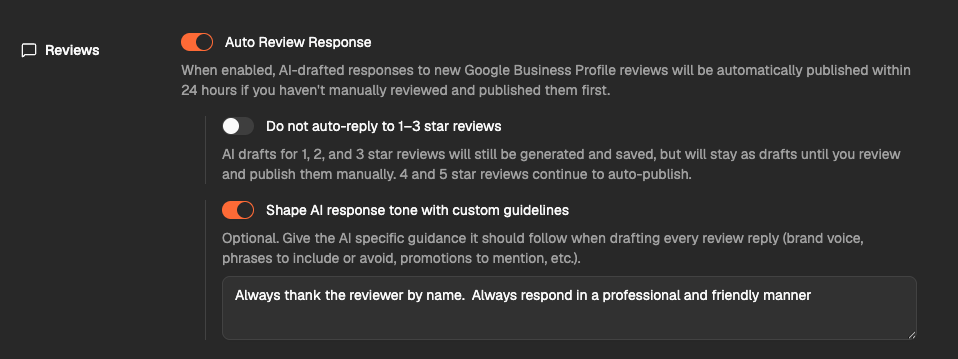
SEO Rocket can automatically publish AI-drafted review replies on your behalf, so new reviews never go unanswered.
Turning on Auto-Reply:
Go to Settings → Automation.
Toggle on Auto-Review Responses.
Once enabled, AI will draft a response to each new review. If you haven't manually reviewed and published that draft within 24 hours, SEO Rocket will publish it automatically.
Custom AI instructions:
You can give the AI specific guidance about your brand voice, things to always mention, or topics to avoid. This shapes how all AI-generated replies are written for your location.
Important: Auto-reply uses the same tone settings and custom AI instructions you've configured for your location. We recommend reviewing these settings before enabling automation to make sure responses match your brand voice.
Media
The Media section shows all the photos currently on your Google listing. You can view and manage your photo gallery on a per-location basis, keeping your listing visuals organized and up to date.
Performance
The Performance section shows you how your Google Business Profile is actually performing in search and on Maps.
You can track:
Searches: How many people searched for your business
Views: How many people viewed your listing
Clicks: Trends in customer actions over time
Keyword impressions: The search terms people used to find you
Use this data to understand what's driving visibility and where there's room to grow. You can take these “search keywords” and manually upload them as “new keywords” in the Keywords section so you can write about them.
Location Info
The Location Info section lets you edit your business listing details directly from SEO Rocket. No need to log in to Google separately.
You can update:
Business name, phone number(s), and website URL
Full address, including map pin coordinates
Business description (up to 750 characters)
You can view::
Business hours: regular weekly hours, special holiday hours, and additional hour types (delivery, pickup, drive-through)
Business categories (primary and additional)
Open/Closed status: open, temporarily closed, or permanently closed
Action Links
Action Links are the call-to-action buttons that appear on your Google listing. You can configure which actions are available to customers, such as:
Book an appointment
Order online
Get a quote
These buttons give customers a direct path to take action right from your listing.
Bulk Operations
If you manage multiple locations, Bulk Operations lets you apply the same change across all of them at once. This is especially useful for agencies handling large numbers of client listings who need to make consistent updates without repeating the same steps for every location.
Sync Changes
The Sync section gives you a clear view of any pending changes between SEO Rocket and Google. You can see what Google has updated on your listing versus what you've set, then review and sync as needed to keep everything aligned.
Automation Summary
SEO Rocket handles several ongoing tasks automatically so you can stay focused on running your business:
The weekly post scheduler picks your top articles and queues them as GBP posts, running on autopilot across all connected locations. To manage Google Post automation settings, go to Google Profile in the sidebar and scroll down to the “Weekly auto-scheduled posts” section and toggle this feature On.
Auto-reply publishes AI-drafted responses to new reviews within 24 hours if you don't publish a reply manually first. To manage Google Review automation settings, go to Settings → Automation.
Per-location daily caps ensure automation stays within safe, reasonable limits.
Frequently Asked Questions
Can I manage multiple business locations?
Yes. You can connect multiple locations during setup or add them later. The dashboard includes a location switcher so you can move between them easily. Bulk Operations lets you make changes across all locations at once.
What happens if I edit a review reply draft before the 24-hour window is up?
If you manually review and publish a reply before the 24-hour window closes, SEO Rocket will use your version and auto-reply will not publish anything for that review.
Can I turn off auto-reply for specific locations?
Daily reply limits and automation settings can be configured per location. Contact support if you need help setting up location-specific automation rules.
Will AI always use the same tone when replying to reviews?
The AI adjusts tone based on star rating by default. If you've added custom AI instructions, those will also shape how replies are written. You can update your instructions at any time in the Reviews section.
Can I disconnect my Google account?
Yes. You can disconnect from the Google Profile section at any time. Your SEO Rocket content and settings will remain intact.
What's the character limit for my business description?
Google allows up to 750 characters for your business description. You can edit it directly in the Location Info section.
For additional help, reach out to our team through the in-app support chat.
Was this helpful?
Still need help? Ask the team